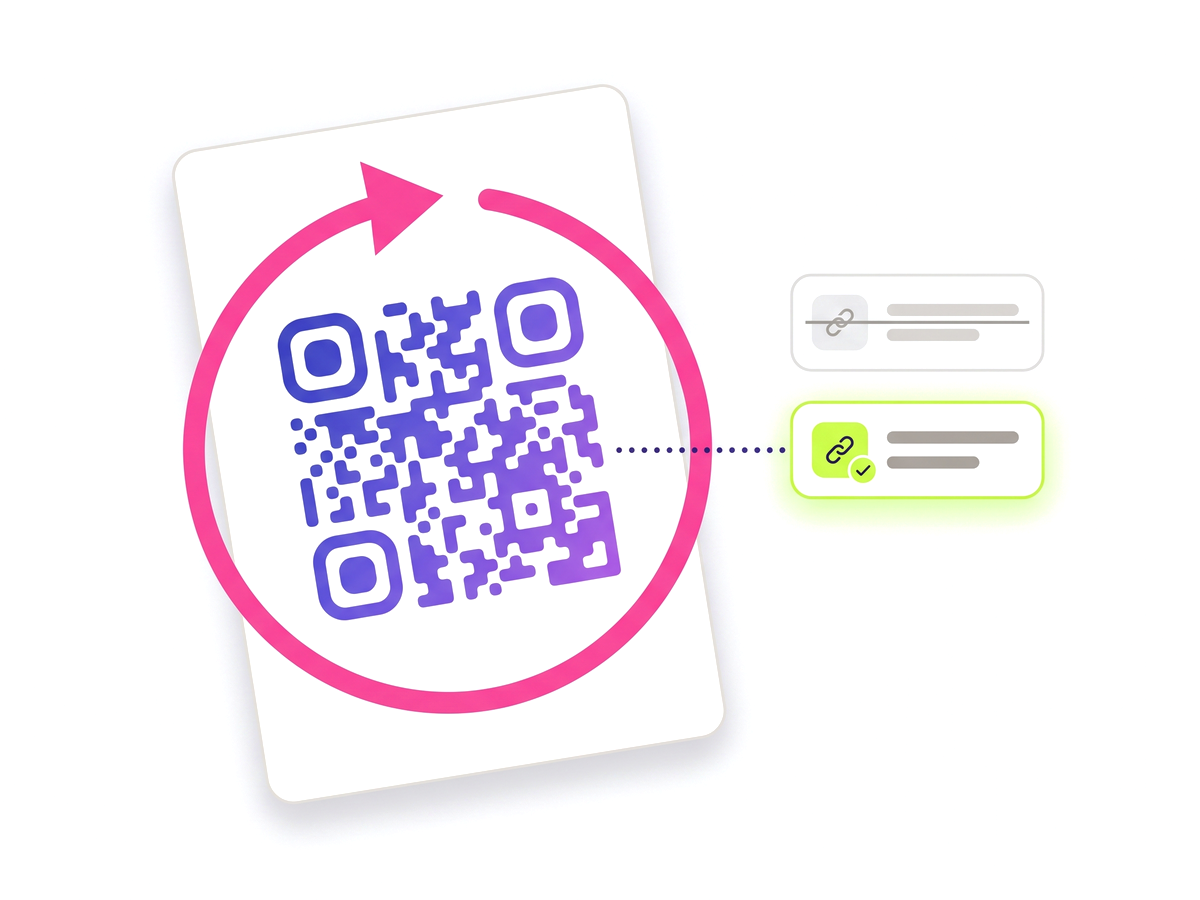
A template is a saved QR Studio design with its own copy of the logo. Set one as your default and every new code is on-brand the moment it is created.
Save your first brand template
Styling one QR code takes a minute. Styling forty, identically, from memory, three weeks apart, does not — and the drift shows up on the printed material, where one code has last year’s accent colour and a slightly different eye shape.
A brand template captures a finished design — module shape, eye frame and pupil shapes, all three colours, gradient, margin, error correction and the logo — and lets you stamp it onto other codes. What was a per-code decision becomes a per-brand one.
This sounds like a detail and is not. A template keeps its own copy of the logo it was saved with, and applying it copies that file again for each code it styles. Templates, codes and each other’s logos are never the same file.
The consequence is the one that matters: deleting a template, or replacing a logo on one code, can never pull an image out from under another code that was styled from it. Anything already printed keeps working exactly as it did.
What the feature actually does, part by part.
Finish a design in QR Studio and save it as a named template, logo included.
Mark a template as your default and every new code is created in it — no styling step to remember or forget.
Restyle a selection of codes, a whole folder, a client’s codes, or everything you own, in a single action.
Every template and every code it styles gets a separate file, so deleting one can never break another.
Applying a template changes appearance only. Destinations, slugs and scan history are untouched, and printed codes keep working.
Agencies keep one template per client and apply the right one to that client’s codes in a couple of clicks.
Wherever more than a handful of codes have to look like they came from the same place.
No technical knowledge required.
Design a code the way you want it in QR Studio.
Save the design as a brand template and give it a name.
Optionally mark it as your default, so new codes start on-brand.
Open Brand templates and choose Apply.
Pick a selection, a folder, a client, or everything — and confirm.
Taken from the live plan matrix, so this page and your account always agree.
See the full plan comparison for everything each tier includes.
Straight answers to what usually decides whether this is the right tool for the job.